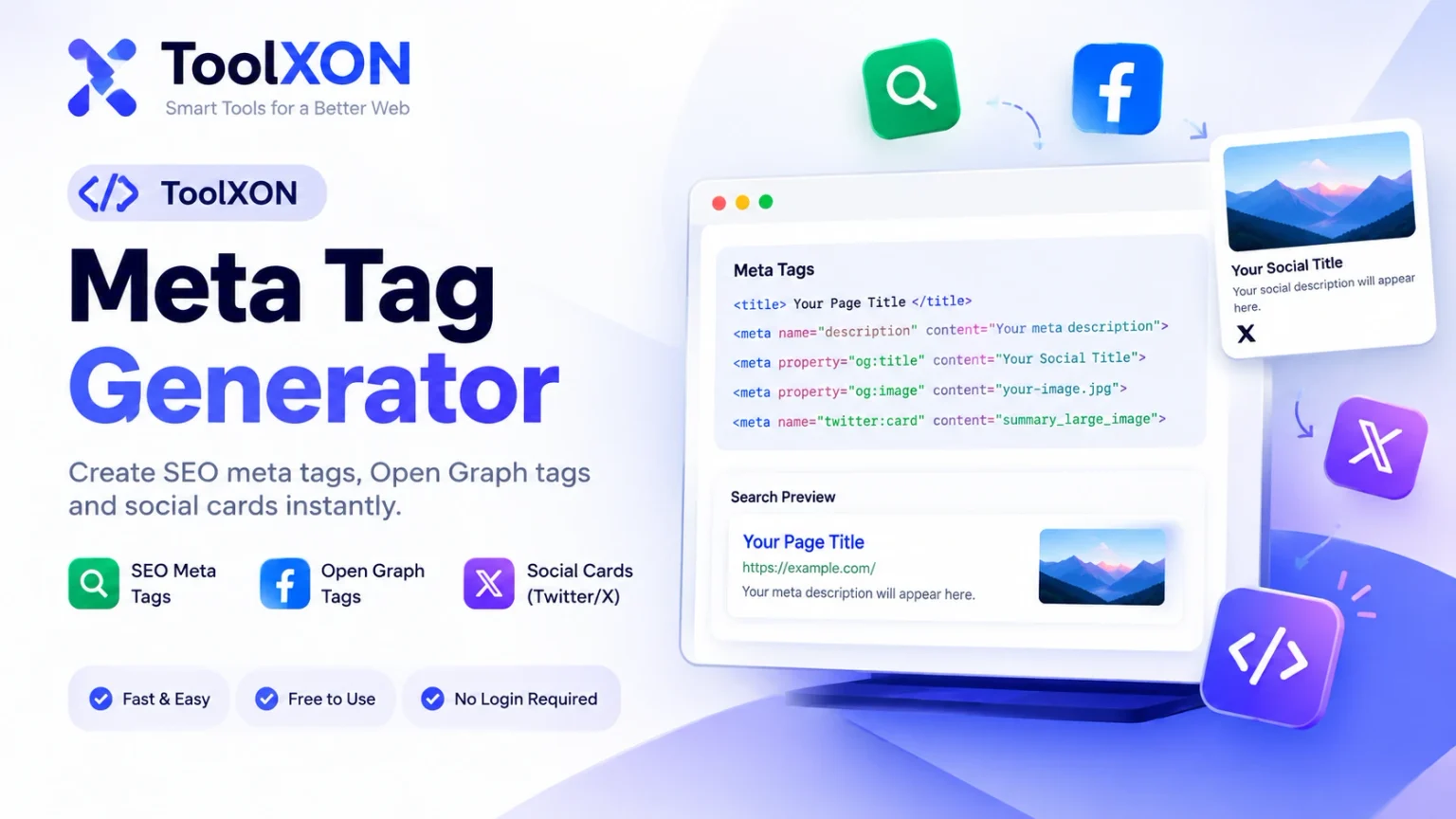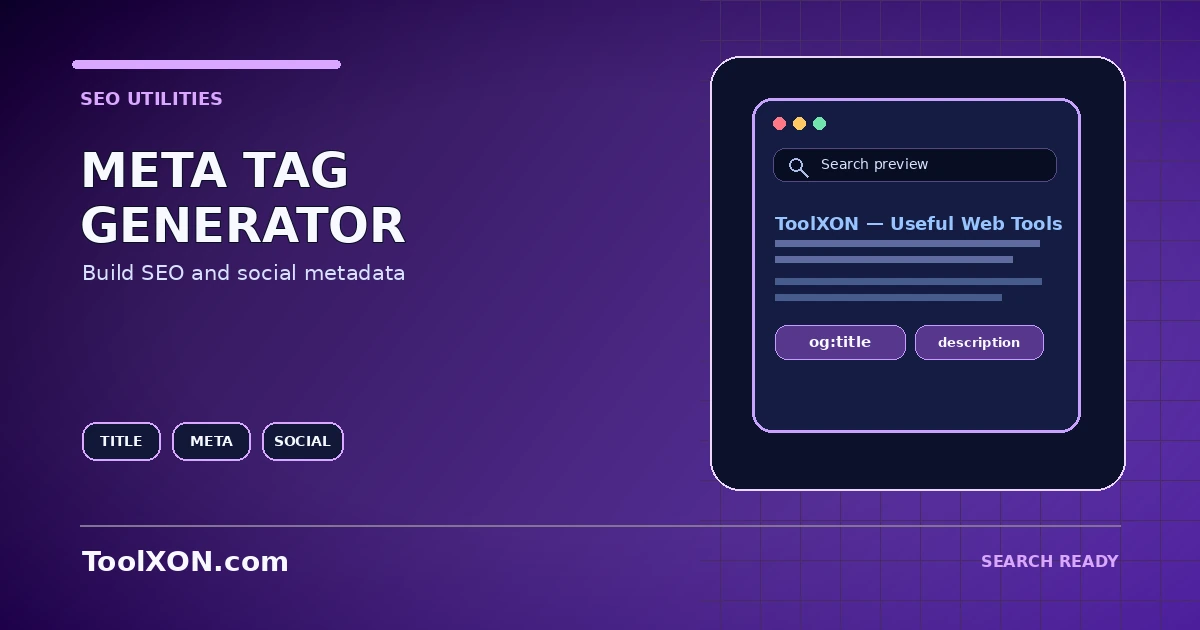
A meta tag generator helps prepare common metadata for a web page, including a title, description and social sharing fields. These values can make page information easier for search engines and social platforms to interpret, but generating tags alone does not guarantee higher rankings or a specific preview. Use the ToolXON generator below to enter page details, review the generated markup and add it to the correct page template or content system. Always verify the published source after implementation.
People Also Search For
Use the Meta Tag Generator Tool
This is a working, interactive tool embedded directly in this post. Complete your task here, then follow the guide below for tips and limitations.
Understand the main fields
The HTML title element describes the document title and is often used as the search-result heading, although search engines may rewrite it. A meta description summarizes the page and may be used as a search snippet, but it is not a ranking guarantee. Open Graph fields such as og:title, og:description and og:image help control link previews on supported social platforms. Canonical URLs are implemented with a link element, not a normal meta description tag.
How to Use It
- Enter a clear page title and accurate summary.
- Add the canonical URL only when you know the preferred URL for that page.
- Provide social title, description and an absolute image URL where supported.
- Generate and copy the output markup.
- Place the tags in the page head using your CMS or theme, then inspect the published source and preview tools.
Important Tips and Limitations
Avoid repeating keywords unnaturally or writing descriptions that promise content the page does not contain. Do not add multiple conflicting canonical tags. Ensure that each page has the correct absolute URL and that social images are publicly accessible. The generator prepares markup; it does not publish or validate your entire website by itself.
Frequently Asked Questions
Do meta keywords improve Google rankings?
Google Search does not use the meta keywords tag for web ranking.
Will a meta description always appear in search results?
No. Search engines may select page text that better matches the user’s query.
Where should generated tags go?
Usually within the HTML head of the intended page. Use your CMS or theme’s proper metadata mechanism and verify the rendered output.