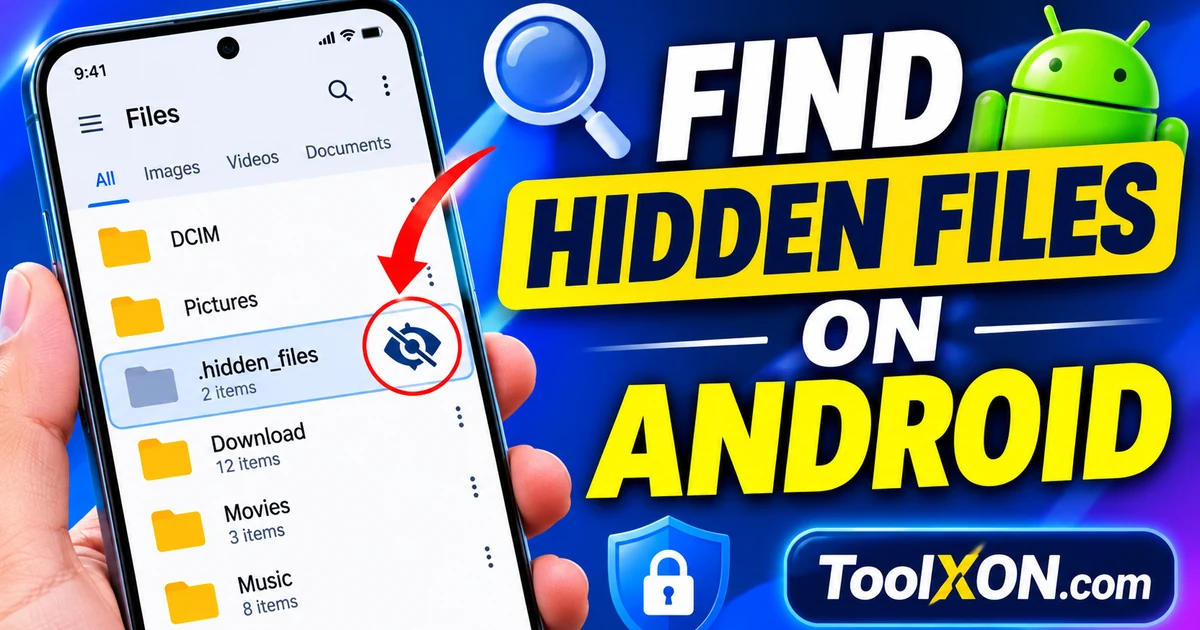
Find hidden files on Android by checking the file manager’s settings for a “Show hidden files” option. The exact steps depend on the app and phone brand. Hidden files are not necessarily private or deleted; some are configuration folders used by apps and the operating system.
Quick Navigation
What hidden files mean on Android
Some file managers hide files and folders whose names begin with a dot, such as .thumbnails or app-specific folders. Other apps use their own hidden or private folders. A hidden item may be harmless app data, a cache, or a file you deliberately hid.
Check hidden files in your file manager
- Open the file manager already installed on your phone.
- Open its menu or Settings page.
- Look for Show hidden files, Display hidden items or a similarly named option.
- Turn it on, then return to internal storage and inspect the folders you need.
In Files by Google and other file managers, menu layout and available options can change with app versions. If you do not see the option, check the app’s help or settings search rather than assuming the files are missing.
Understand dot-prefixed files and folders
A name that starts with a period is commonly treated as hidden by file-management tools. Examples may include thumbnail caches or app configuration directories. Do not delete these folders just because they are hidden; apps may recreate them, lose settings or stop working as expected.
If the option is missing
- Update your file manager from its official app store.
- Try the phone manufacturer’s built-in file manager if it offers a hidden-items control.
- Use a reputable file manager with a clearly documented setting.
- Search for the exact folder or filename if you already know what you need.
Android storage restrictions mean some protected app directories may remain inaccessible even when hidden-file display is enabled. Showing hidden files does not bypass Android permissions.
Stay safe when viewing hidden files
- Do not edit or delete unfamiliar folders in Android system locations.
- Do not install unknown APKs that claim to reveal hidden files.
- Back up important photos and documents before moving files.
- Remember that a hidden folder is not a secure vault. Use a trusted privacy feature for sensitive content.
Frequently Asked Questions
Can I see every hidden file on Android?
No. A file manager may show hidden items that it can access, but Android permissions can still block protected app or system directories.
Does showing hidden files recover deleted photos?
No. It only displays items that still exist but are hidden by the file manager. Deleted files require a separate recovery process, and recovery is not guaranteed.
Is it safe to delete hidden folders?
Not automatically. Some contain app settings, caches or data. Identify a folder before changing or deleting it.
Final thoughts: Choose the settings, apps or tools that solve your actual problem. Check compatibility and privacy details before changing important settings or installing new software. For more practical technology guides, explore ToolXON.com.