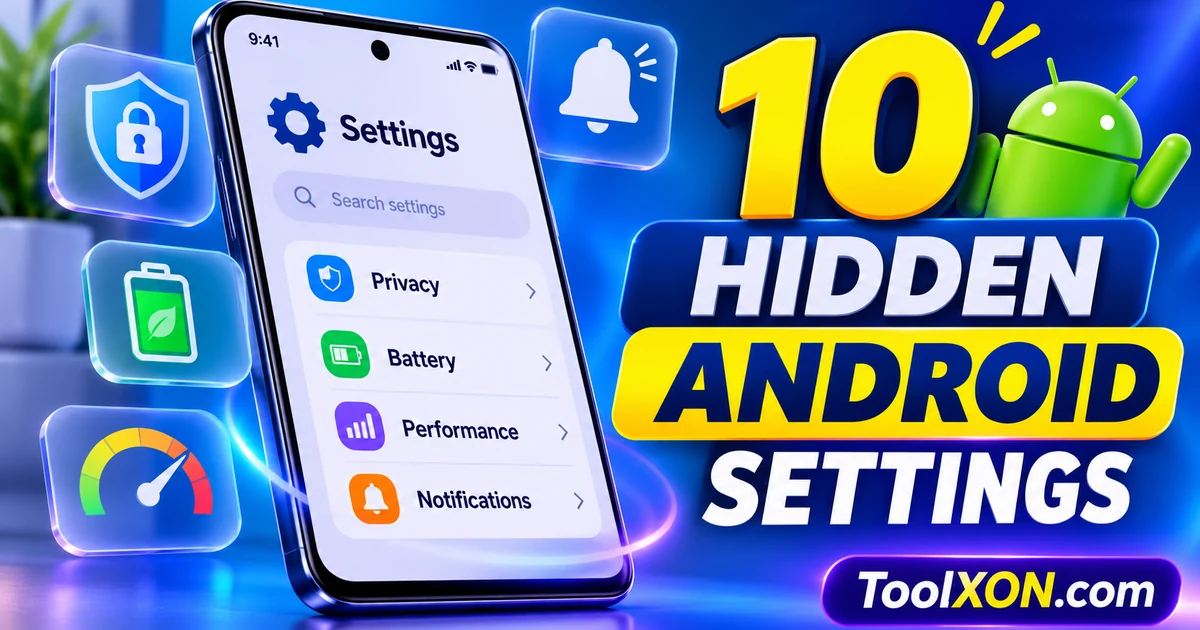
Hidden Android settings can give you more control over privacy, notifications, battery use and everyday phone behaviour. The exact menu names vary by Android version and phone brand, so use the Settings search bar whenever a step looks different. Here are ten useful settings worth reviewing on a modern Android phone.
Quick Navigation
Why review Android settings?
Phones ship with many options enabled or configured for general use. A quick review helps you understand which apps can access sensitive information, which alerts interrupt you and which background activities use power. These changes are suggestions—not a promise of a dramatic speed or battery boost.
Privacy and security settings
1. Review app permissions
Open Settings → Privacy → Permission manager (the path may differ). Check camera, microphone, location, contacts and photos access. Remove permissions an app does not need for its main function.
2. Check the Privacy Dashboard
On supported Android versions, the Privacy Dashboard shows which apps recently accessed permissions such as location, camera and microphone. Use it to spot access you do not expect.
3. Turn on app-specific location controls
Where available, choose approximate location instead of precise location for apps that do not need exact positioning. Keep precise access for navigation or other functions that genuinely require it.
4. Review lock-screen notification privacy
Hide sensitive notification content on the lock screen if you do not want message previews visible when your phone is locked. You can usually adjust this under Notifications or Lock screen settings.
Battery and performance settings
5. Check battery usage by app
Open Battery settings and review which apps use the most power. Restrict background activity only for apps where delayed notifications or syncing will not cause problems.
6. Use Adaptive Battery if available
Adaptive Battery learns usage patterns and can limit background activity for apps you rarely use. Availability and wording vary by device.
7. Set a sensible screen timeout
A shorter screen timeout can reduce the time the display stays on when you put the phone down. Choose a duration that remains comfortable for reading.
Notifications and daily-use settings
8. Silence unnecessary notifications
Long-press an unwanted notification or open App notifications in Settings. Disable noisy categories rather than turning off important alerts from the entire app.
9. Schedule Do Not Disturb
Set a schedule for sleep, work or study. Add exceptions for important contacts or repeated calls if your phone offers those options.
10. Review Digital Wellbeing controls
Use app timers, Focus mode or Bedtime mode where supported to reduce interruptions and manage screen time.
Make changes safely
- Change one setting at a time so you can identify what changed.
- Do not disable system services just because an online tip labels them unnecessary.
- Keep security updates enabled and install apps from trusted sources.
- Menu names differ across Samsung One UI, Xiaomi HyperOS, Pixel Android and other interfaces.
Tip: If you cannot find a menu, open Settings and search for terms such as “permissions”, “battery usage”, “notification history” or “Do Not Disturb”.
Frequently Asked Questions
Are these settings available on every Android phone?
Not always. Android version and manufacturer software affect menu names and feature availability. Use Settings search to find equivalent controls.
Will changing these settings make my phone faster?
Some changes can reduce interruptions or background activity, but they do not guarantee a measurable speed increase. Avoid disabling services you do not understand.
Is it safe to restrict background apps?
It can delay notifications, backups or syncing. Restrict only apps whose background activity is not important to you.
Final thoughts: Choose the settings, apps or tools that solve your actual problem. Check compatibility and privacy details before changing important settings or installing new software. For more practical technology guides, explore ToolXON.com.