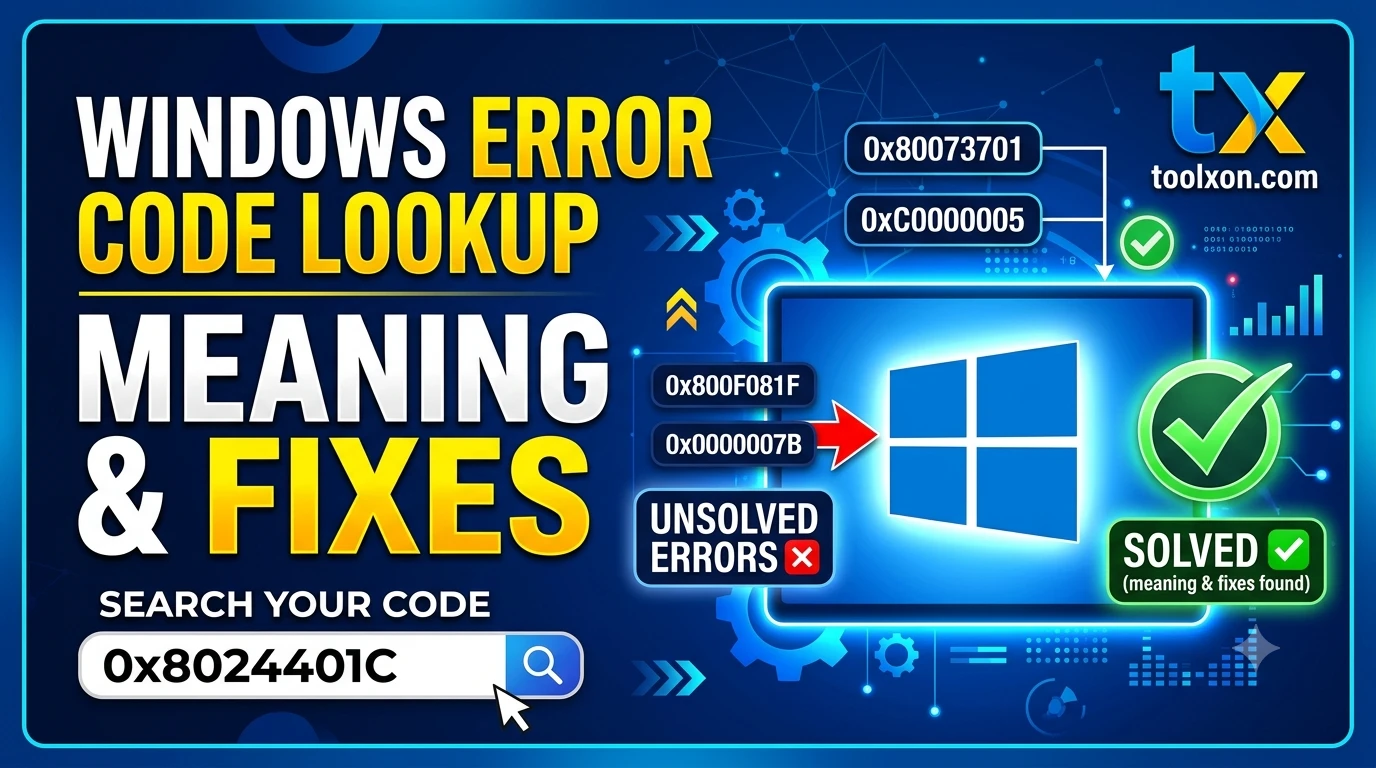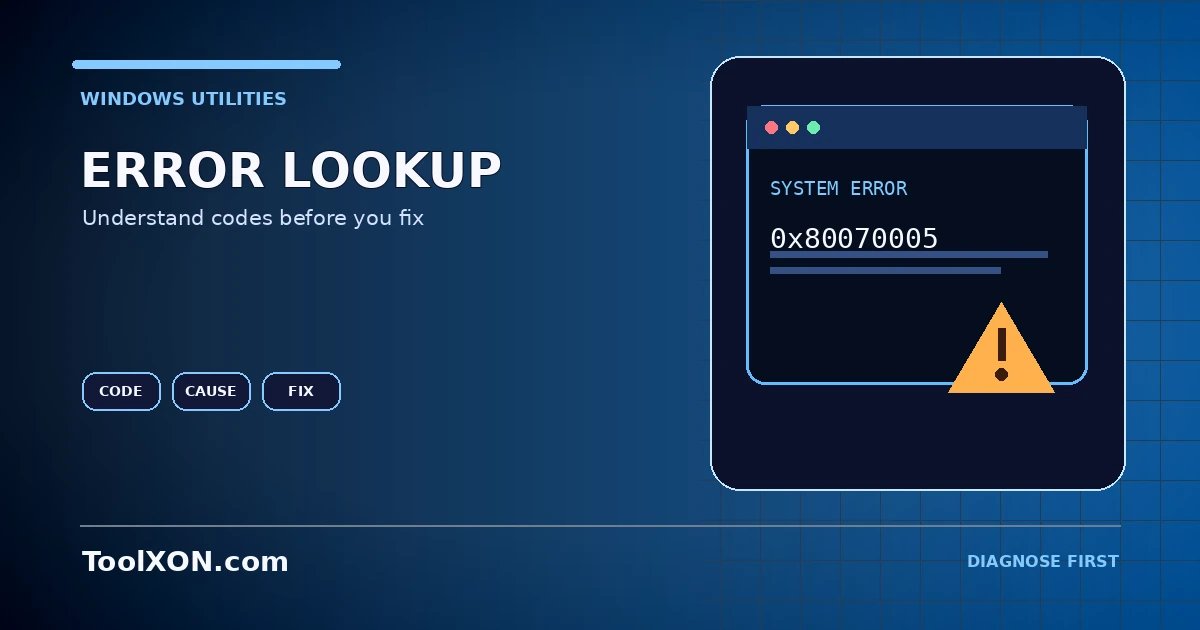
Windows errors can appear during installation, updates, app launches, device setup or everyday use. An error lookup tool helps you identify what a code or message may refer to before choosing a repair. Enter the exact code into the ToolXON Windows Error Lookup below, when supported, and compare the result with the full context from your device. Similar-looking codes may belong to different components, so record the application, Windows version and action that triggered the message.
People Also Search For
Use the Windows Error Lookup Tool
This is a working, interactive tool embedded directly in this post. Complete your task here, then follow the guide below for tips and limitations.
Collect useful diagnostic details
Copy the complete error code and message, note when it appeared and whether it began after an update or configuration change. For system-level issues, Windows Event Viewer and Reliability Monitor can provide additional context. A lookup result is a starting point rather than a diagnosis: the same code can have different causes depending on the application, device driver or service involved.
How to Use It
- Copy the exact code and message, including any hexadecimal prefix.
- Search using the error lookup tool or the official support documentation for the affected component.
- Match the proposed cause to the timing and context of the error.
- Back up important files and create a restore point when appropriate before major repairs.
- Apply one documented change at a time and check whether the error returns.
Important Tips and Limitations
Avoid downloading random DLL files, registry cleaners or “one-click fix” utilities from unknown sites. Do not run commands you do not understand with administrator privileges. If the error concerns disk health, encryption or data loss, prioritize a backup before attempting repairs that modify the system.
Frequently Asked Questions
Can an error lookup tool fix the problem automatically?
A lookup usually explains an error; actual repair depends on the cause and the steps you choose.
Why does the same code have different explanations?
Context matters. The code may be raised by different Windows components or applications.
Where can I confirm a critical system error?
Use Microsoft documentation for Windows components or the official support page for the app or device involved.