Best HyperOS themes are a matter of personal style: some users prefer clean minimal icons, while others want dark interfaces, glass effects or a redesigned lock screen. Xiaomi’s Themes catalogue can vary by region, device and software version, so the safest way to find a theme is to search its exact name in the official Themes app on your phone.
Quick Navigation
Before choosing a HyperOS theme
A theme may change the wallpaper, icons, lock screen, status bar or parts of the system interface. Not every theme changes every element, and previews do not guarantee identical results on all devices. Check screenshots and the supported components before applying.
Theme styles to explore
1. Minimal and clean themes
Look for simple icons, restrained colours and uncluttered lock screens if you prefer a calm home screen.
2. Dark and OLED-inspired themes
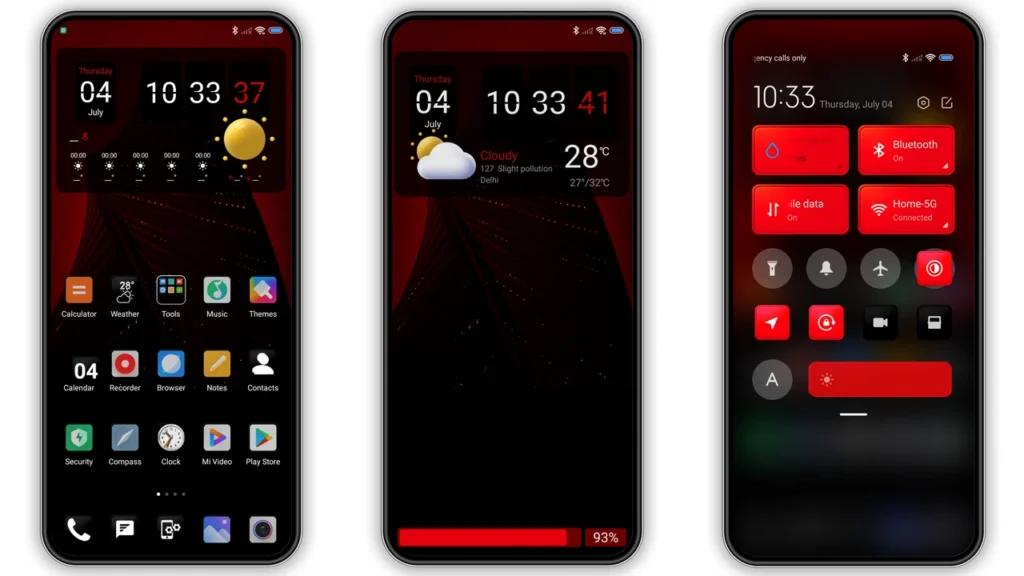
Dark backgrounds and high-contrast icons can create a cohesive night-time look. Actual power savings depend mainly on the display technology and brightness.
3. Glass-effect themes
Translucent panels, soft blur and layered icons create a modern glass-inspired appearance. Check readability before choosing a heavily transparent design.
4. iOS-inspired themes
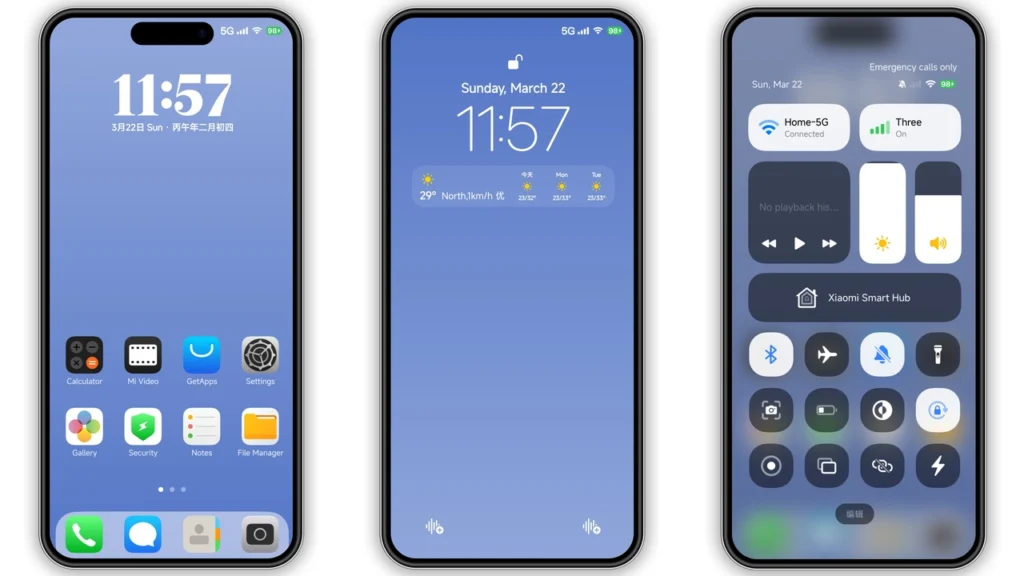
These themes often use rounded icons, redesigned widgets and a familiar lock-screen layout. They do not turn Android into iOS or provide Apple services.
5. Material-style themes
Look for coordinated colours, simple shapes and consistent icon design for a practical everyday setup.
6. Nature and scenic themes
Landscape wallpapers, soft colours and large clocks can make a phone feel more personal without changing every system element.
7. Typography-focused themes
Some themes emphasise fonts, clock styles and status-bar details. Make sure text remains comfortable to read.
8. Monochrome themes
Black, white and grey palettes create a restrained look that works well with simple wallpapers.
9. Colourful icon themes
Bright, consistent icons help distinguish apps and add personality to a home screen.
10. Custom lock-screen themes
Explore themes that focus on clock layouts, widgets and lock-screen artwork if you want a visible change without redesigning every app icon.
How to find themes in the official Themes app
- Open the built-in Themes app on your Xiaomi, Redmi or POCO phone.
- Use its search field to search for a theme name or style.
- Open the theme page and review the preview, creator information and supported components.
- Use the download or apply option shown by the official app.
Important: Theme names and catalogue availability change. This guide describes styles to explore rather than claiming that every style is a currently available downloadable theme. Search the exact theme name in your own Themes app; no third-party download is required.
How to apply a theme
Open the selected theme in the official app and tap Apply. If your phone allows component selection, choose the elements you want to change, such as lock screen, icons or system interface. You can usually return to your previous theme from the Themes app.
Compatibility and region notes
Theme availability may depend on country or region, device model and HyperOS version. A theme preview or name seen online does not guarantee it will appear in your local catalogue. Avoid unofficial packages from unknown sources, and do not install a theme file unless you understand its origin and compatibility.
Frequently Asked Questions
Do HyperOS themes work on every Xiaomi phone?
No. Availability and supported components can vary by model, region and HyperOS version.
Where can I download HyperOS themes safely?
Use the built-in official Themes app and its own download or apply controls.
Why can’t I find a theme name?
The theme may be unavailable in your region, removed from the catalogue, renamed or incompatible with your device.
Final thoughts: Choose the settings, apps or tools that solve your actual problem. Check compatibility and privacy details before changing important settings or installing new software. For more practical technology guides, explore ToolXON.com.