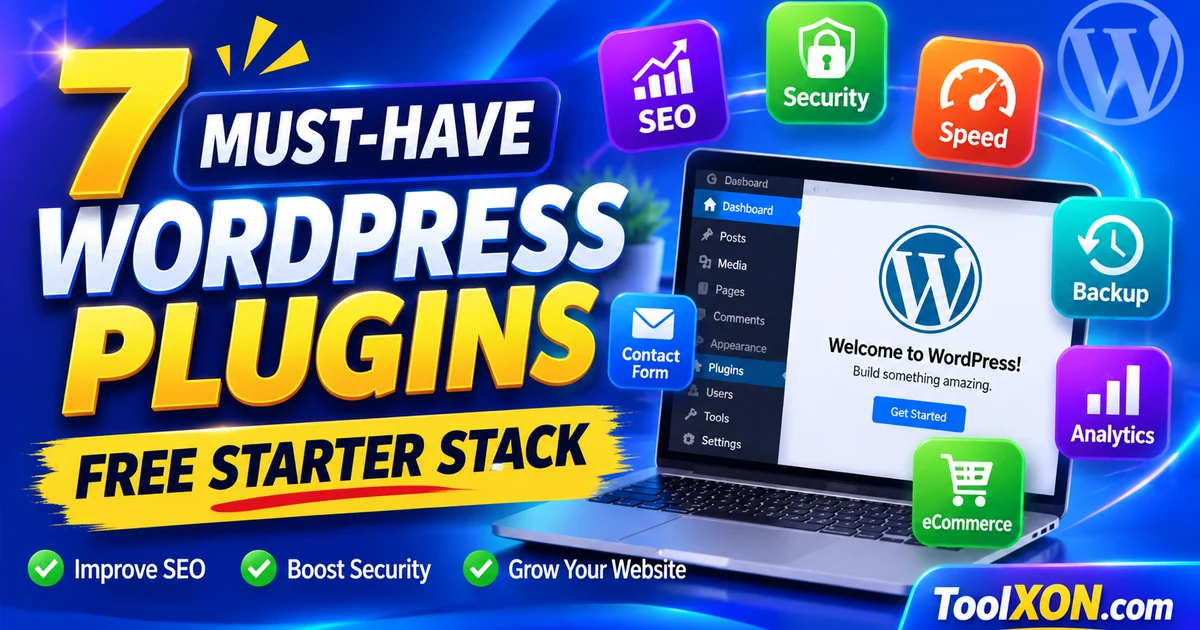
Free WordPress plugins can help a website handle SEO, security, caching, contact forms, backups, analytics and email delivery. The key is to install one reliable plugin for each job instead of adding several tools that do the same thing. Here is a practical starter stack for a typical WordPress site.
Quick Navigation
The seven-plugin starter stack
1. Rank Math SEO — search optimisation
Use it to manage SEO titles, meta descriptions, sitemaps and on-page recommendations. If you already use Yoast SEO or another SEO plugin, do not run multiple full SEO plugins together.
2. Wordfence Security — security monitoring
Provides security-focused features such as firewall and malware scanning. Keep it updated and configure alerts sensibly. A plugin cannot replace strong passwords, updates and reliable hosting.
3. LiteSpeed Cache — caching and optimisation
A strong option for sites hosted on LiteSpeed servers. Some server-level features depend on the hosting environment. If your host does not use LiteSpeed, choose a cache solution suited to that server instead.
4. WPForms Lite — contact forms
Provides a visual way to create basic forms. Test form delivery after setup and configure email sending correctly so messages do not silently fail.
5. UpdraftPlus — backups
Helps schedule backups and send them to supported remote destinations. A backup is useful only if it can be restored, so test a restore process and keep copies away from the website server.
6. Site Kit by Google — site statistics
Connects supported Google services and displays useful site information inside WordPress. Review permissions and connect only the services you intend to use.
7. WP Mail SMTP — email delivery configuration
Helps configure WordPress email through a supported mailer. Follow the provider’s setup instructions and send a test email after configuration.
Choose plugins without conflicts
- Use only one primary SEO plugin.
- Avoid running multiple page-cache plugins at the same time.
- Check whether your hosting provider already supplies security, caching or backups.
- Review plugin update history, compatibility notes, support and permissions before installation.
- Install only the features your site actually needs.
Install and maintain plugins safely
- Back up your site before adding or replacing major plugins.
- Install from the official WordPress Plugin Directory or the developer’s trusted source.
- Activate one plugin at a time and test the front end, admin area and important forms.
- Keep WordPress, themes and plugins updated.
- Remove plugins you no longer use, after checking whether they store data you need.
Plugin choice depends on your hosting stack and website requirements. A smaller, maintained plugin set is often easier to secure and troubleshoot than a dashboard full of overlapping tools.
Frequently Asked Questions
Are these WordPress plugins free?
Each has a free version or free core plugin in the WordPress ecosystem, but some features, services or add-ons may be paid. Check the current listing for details.
Can I use Rank Math and Yoast together?
It is generally better to use one primary SEO plugin to avoid overlapping metadata and sitemap output. Choose one and configure it carefully.
Should I install LiteSpeed Cache on every host?
No. Its server-level optimisation features are designed for LiteSpeed environments. Check your host’s stack and use a compatible caching solution.
Final thoughts: Choose the settings, apps or tools that solve your actual problem. Check compatibility and privacy details before changing important settings or installing new software. For more practical technology guides, explore ToolXON.com.